
How to Fix IPTV Buffering: 12 Steps That Work
Buffering is the fastest way to ruin a match. Almost every time it is a network issue rather than the service — and it is usually fixable in a few minutes.
Before you change provider or pay for a faster package, work through the fixes below in order. Each one is quick, and stopping at the first that solves it saves you the rest.
Roughly nine out of ten buffering problems are resolved by the first four steps.
Do These Four First
They are quick, reversible and solve most cases.
Restart everything, in this order
Modem, then router, then the streaming device. Wait 30 seconds between each. This clears a congested connection more effectively than any setting change.
Move to a wired connection
Ethernet eliminates Wi-Fi contention entirely. On a stick, a cheap Ethernet adapter is the single best upgrade you can make.
Switch to the 5 GHz band
2.4 GHz travels further but is crowded and slower. If the router offers both, put the streaming device on 5 GHz.
Lower the stream quality
A steady HD picture beats an interrupted 4K one. Drop to 720p or 1080p in the player and see if the stutter stops.
If It Still Stutters
Work down this list only if the quick fixes did not settle it.
Stop Background Downloads
Game updates, cloud backups and phone backups all compete for bandwidth at the worst possible moment.
Close Other Apps
Sticks and boxes have limited memory. Force-close everything except the IPTV player.
Check Real Speed
Run a speed test on the same device. You need a stable 15 Mbps for HD and 25 Mbps+ for 4K — measured, not promised.
Test at a Quiet Time
If mornings are fine and evenings are not, the bottleneck is your local network or the ISP, not the service.
Clear the Player Cache
A bloated cache causes stutter that looks exactly like a network problem. Clear it in the player settings.
Update Firmware and App
Both TV firmware and the player receive playback fixes. Update each, then retest.
Equipment That Helps
The three hardware changes worth making before you give up.
Ethernet Adapter
Removes Wi-Fi entirely from the equation — the most reliable single fix available.
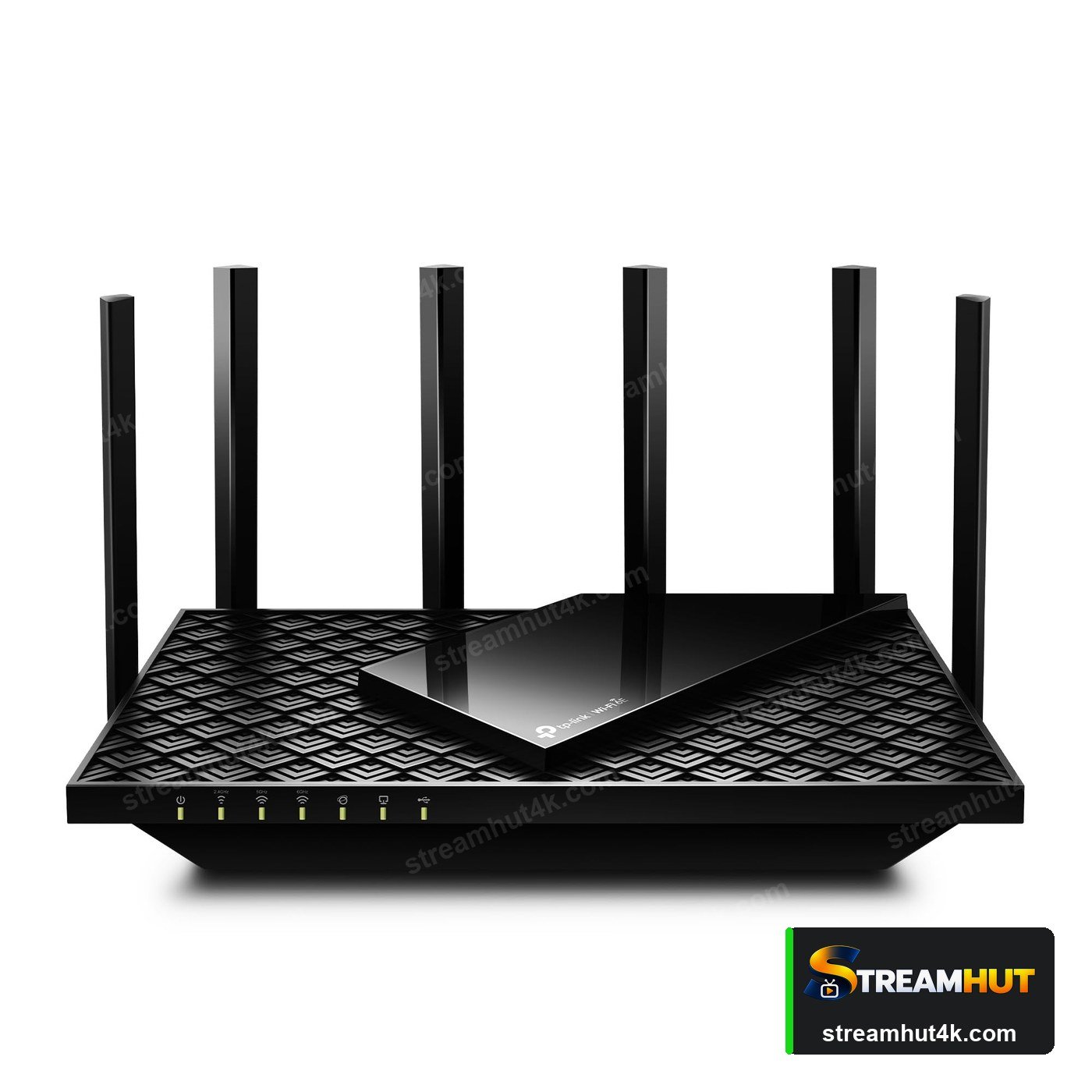
Firestick guideDual-Band Router
A modern router with 5 GHz and enough range keeps the living room clear of interference.
Powerline Kit
No Ethernet run needed — carries the signal through your home's existing wiring.
When to Contact Support
If you have worked through the list and it still stutters, gather evidence first.
Before you open a ticket, note the exact time, the channel and what device you were using. Support can check the stream on their end — but only if you can tell them precisely when it failed.
Useful things to have ready:
- The date, time and channel of the problem
- Your measured download speed on that device
- Whether it happens on wired and Wi-Fi alike
- Whether other channels are affected too
- The player and version you are running
A useful split test
If live channels buffer but on-demand does not, the problem is usually the live source. If both stutter, look at your own connection first.
IPTV Buffering — Common Questions
Quick answers to the most common questions.
Peak hours mean more devices competing for your bandwidth and heavier load on the network. Test with a wired connection at the same hour — if it clears up, the problem is local Wi-Fi.
Around 10 Mbps for HD and 25 Mbps or more for 4K, measured on the streaming device itself. Stability matters more than a high headline figure.
Usually worse — a VPN adds a hop and encryption overhead. It only helps if your ISP is throttling video traffic, which is worth testing rather than assuming.
Not if the bottleneck is your Wi-Fi. Many people on fast packages still buffer because of interference or distance from the router. Fix the connection before paying for more speed.
Only after ruling out your own network. Try the same provider on a wired connection and at a quiet time — if it is still bad, then switching is reasonable.
Related IPTV Guides
Ready to Try Stream Hut 4K?
Test the service on your own device and connection before you commit.