
IPTV on Firestick: Step-by-Step Setup Guide
The Fire TV Stick is the easiest way to add IPTV to any television. Install a compatible player, sign in and your channels appear in the same menu as everything else.
IPTV on Firestick is the most popular way to watch live TV and on-demand content on a television. The hardware is inexpensive, the remote is familiar and a full setup takes about ten minutes.
This guide covers which Fire TV models work, how to install an IPTV player and the settings that keep playback smooth.
What You Need for IPTV on Firestick
Check these before you start so setup is a single pass.
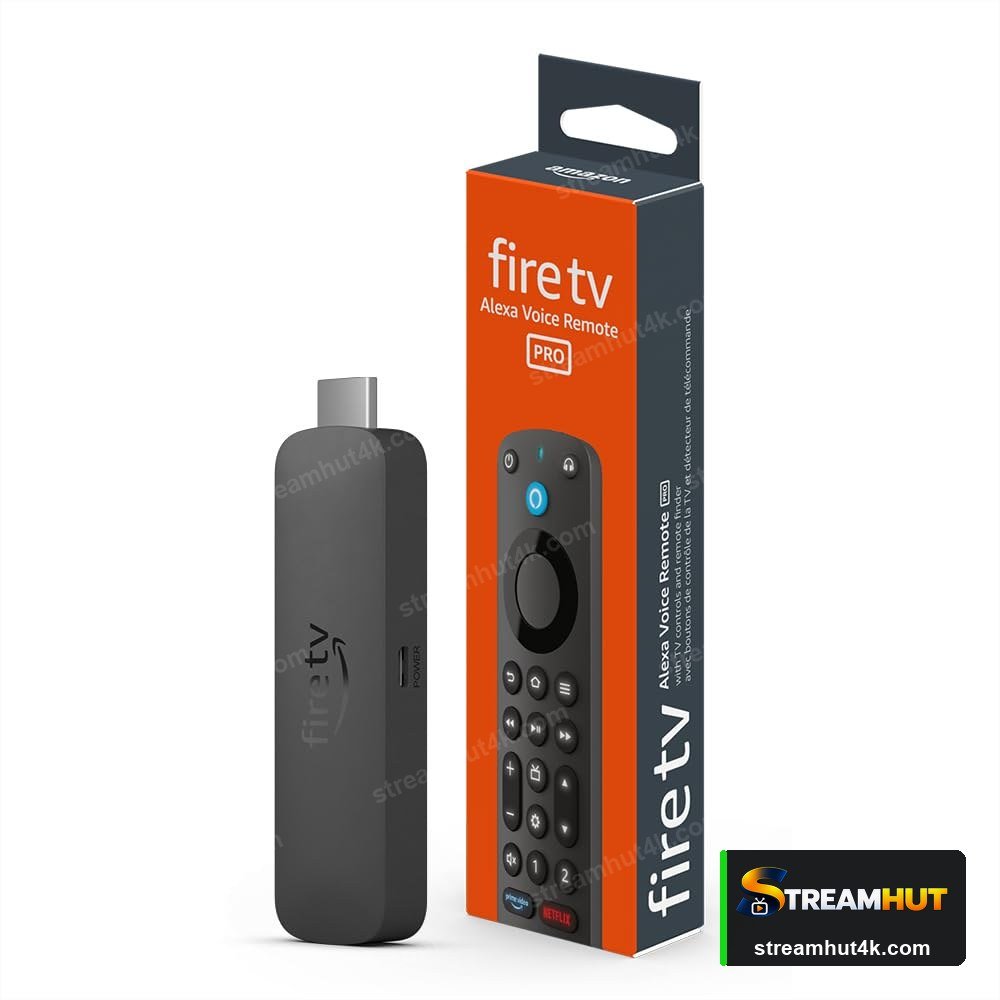
- A Fire TV Stick — any generation, though 4K models handle HD and 4K streams far better.
- An HDMI television with a free port and the input selected.
- Stable internet — at least 15 Mbps for HD, 25 Mbps+ for 4K.
- Your IPTV details — the playlist URL, username and password from your provider.
- An IPTV player app such as IPTV Smarters, TiviMate or a similar player from the apps page.
How to Set Up IPTV on Firestick for IPTV
The same five steps apply on every device — only the menus differ.
Enable apps from unknown sources
Settings → My Fire TV → Developer Options → Install unknown apps. This is required because IPTV players are not all in the Amazon store.
Install a compatible IPTV player
Search the Amazon Appstore for your chosen player, or sideload the APK using the Downloader app if it is not listed.
Open the player and choose your login type
Pick the Xtream Codes API option if your provider gave you a server URL, username and password — it is the easiest path.
Enter your playlist details
Type the server URL, username and password exactly as provided, then let the player load the channel and VOD libraries.
Test a stream and adjust quality
Play a live channel and a 4K title. If either stutters, work through the buffering fixes.
What to Check Before You Buy
A quick comparison so you buy the right thing the first time.
| Check | What Matters | Why It Matters |
|---|---|---|
| Model | Max quality | Notes |
| Fire TV Stick Lite / Basic | 1080p | Fine for HD; no 4K output. |
| Fire TV Stick 4K | 4K HDR | The sweet spot for most people. |
| Fire TV Stick 4K Max | 4K Wi-Fi 6 | Best for busy networks. |
| Fire TV Cube | 4K | Faster CPU and hands-free Alexa. |
Getting a Smooth Stream on IPTV on Firestick
Small settings changes that remove most playback problems.
Prefer Wired
Ethernet removes Wi-Fi congestion entirely during busy evenings — worth it for a living-room device.
Keep Firmware Current
Updates fix playback bugs and improve codec support. Check for them after any picture problem appears.
Close Background Apps
Sticks and boxes have limited memory. Exiting other apps frees bandwidth and RAM for the stream.
Why buffering starts on a Firestick
Firesticks share Wi-Fi with everything else in the household. If a match stalls at kick-off, switch the stick to 5 GHz, close open apps and restart the router before changing anything else.
Other Devices You Can Use
Your subscription works on all of them — switch screens whenever you like.
IPTV on Firestick IPTV — Common Questions
Answers to the questions owners ask most often.
IPTV Smarters, TiviMate and XCIPTV are the common choices. All of them support the Xtream Codes API. See the IPTV apps page for what to consider when choosing.
No. Enabling apps from unknown sources is a normal, reversible setting — it is not a jailbreak. You only need it if the player you want is not in the Amazon Appstore.
Usually Wi-Fi congestion or a weak signal rather than the stick itself. Move it closer to the router, use 5 GHz, or add an Ethernet adapter. The buffering guide has the full checklist.
Yes, on the 4K and 4K Max models, provided the channel broadcasts in 4K and your connection can sustain it. More on requirements in the IPTV 4K guide.
Yes — the same account can usually be installed on several devices, but how many can stream at once depends on your plan. Check your subscription details.
Related IPTV Guides
Set Up IPTV on Your Firestick Tonight
Test the line-up on your own Fire TV Stick before you commit.