
IPTV on Windows: Watch on Your PC or Laptop
A Windows PC needs no extra hardware. Open a playlist in VLC, install a desktop player or use your browser — all three work with the same subscription.
IPTV on Windows is the most flexible option of all: no app store restrictions, no compatibility matrix and several routes to the same result.
The quickest is VLC, which plays an M3U playlist with no installation of anything else. For a proper channel guide and EPG, use a dedicated desktop player.
What You Need for IPTV on Windows
Check these before you start so setup is a single pass.
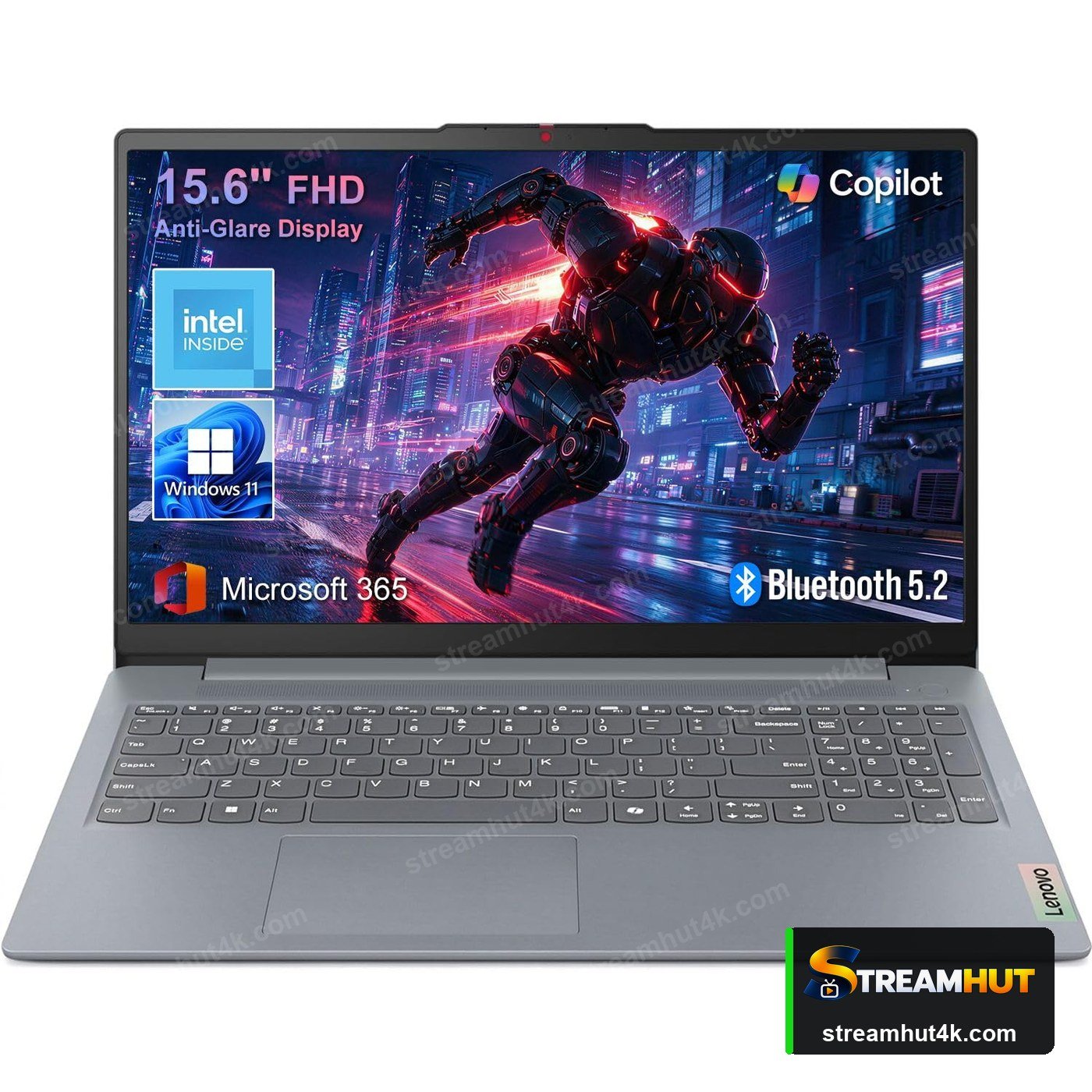
- A Windows 10 or 11 PC with a broadband connection.
- Your M3U playlist URL or Xtream credentials from your provider.
- VLC media player for the quickest route — free and already familiar to most people.
- An alternative desktop player if you want an EPG, favourites and catch-up.
- Ethernet or strong Wi-Fi, plus a television or monitor of a sensible size.
How to Set Up IPTV on Windows for IPTV
The same five steps apply on every device — only the menus differ.
Pick your route
VLC for an instant start, a desktop IPTV player for a proper guide, or a browser if you were given a web link.
Install your chosen app
Download VLC or a Windows IPTV player from its official site — avoid third-party download mirrors.
Add the playlist
In VLC: Media → Open Network Stream → paste the M3U URL. In a desktop player, choose Xtream Codes and enter your credentials.
Let it load
The first import builds your channel list and guide; give it a minute on a large playlist.
Save it and test
Bookmark the playlist so you do not re-enter it, then test live and on-demand streams.
What to Check Before You Buy
A quick comparison so you buy the right thing the first time.
| Check | What Matters | Why It Matters |
|---|---|---|
| Option | Best For | Limitation |
| VLC | Quick start, no install | No channel guide or EPG |
| Desktop IPTV player | Guide, favourites, catch-up | Needs installing |
| Web browser | Nothing to install | Depends on the provider's portal |
Getting a Smooth Stream on IPTV on Windows
Small settings changes that remove most playback problems.
Prefer Wired
Ethernet removes Wi-Fi congestion entirely during busy evenings — worth it for a living-room device.
Keep Firmware Current
Updates fix playback bugs and improve codec support. Check for them after any picture problem appears.
Close Background Apps
Sticks and boxes have limited memory. Exiting other apps frees bandwidth and RAM for the stream.
Match the output to your display
If your laptop only drives a 1080p screen, there is no benefit in forcing a 4K stream — it just needs more bandwidth. Set the player to match your display.
Other Devices You Can Use
Your subscription works on all of them — switch screens whenever you like.
IPTV on Windows IPTV — Common Questions
Answers to the questions owners ask most often.
Yes. Open Media → Open Network Stream, paste the M3U URL and press Play. VLC will load and play the whole list, though it shows no channel guide.
VLC is free and capable. Dedicated desktop players add an electronic programme guide and favourites, and free tiers are common.
Usually Wi-Fi or a saturated connection. Try Ethernet, close downloading apps and test again — see buffering fixes.
Yes, if your display, the channel and your connection all support it. See IPTV 4K for what is required.
Yes — one account typically covers several devices. The number of simultaneous streams depends on your plan; see pricing.
Related IPTV Guides
Start Watching IPTV on Windows
Test the playlist on your own PC before you subscribe.