
IPTV on Smart TV: Set It Up on Any Television
A Smart TV with the right player removes the need for any extra hardware. Install the app, add your playlist and everything lives behind one remote.
IPTV on a Smart TV is the cleanest setup: no stick, no box, no second remote. If your television runs Tizen, webOS or Android TV, a compatible player will install straight onto it.
The catch is platform support — not every player is available on every Smart TV system, so it is worth checking first.
What You Need for IPTV on Smart TV
Check these before you start so setup is a single pass.
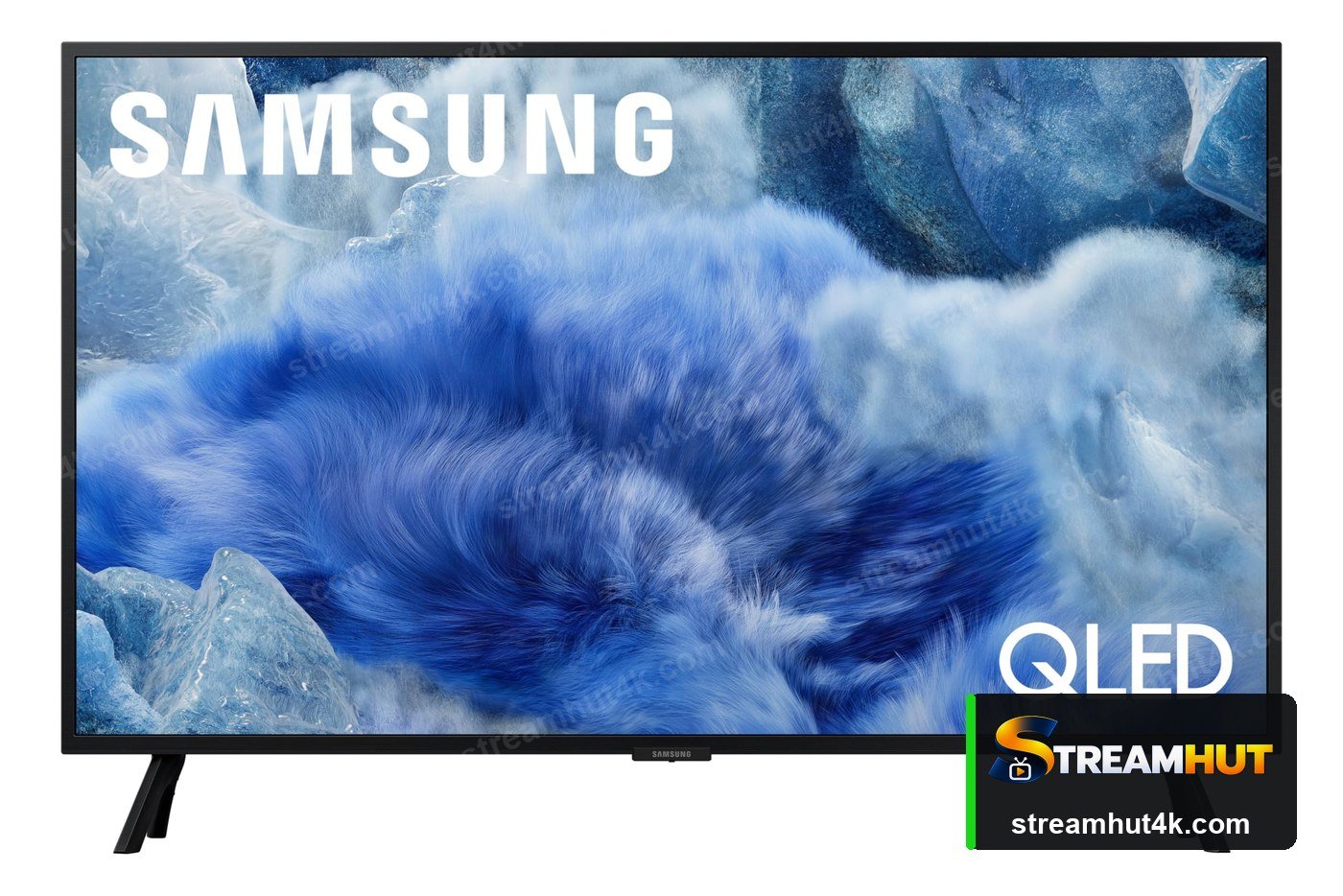
- A Smart TV running Tizen (Samsung), webOS (LG), Google TV / Android TV, Roku or a similar platform.
- An internet connection — wired Ethernet is more reliable than Wi-Fi for live channels.
- Your IPTV login details from your provider.
- An IPTV player available on your TV's app store, or an Android TV box if none is.
- Adequate bandwidth — 15 Mbps for HD, 25 Mbps+ for 4K streams.
How to Set Up IPTV on Smart TV for IPTV
The same five steps apply on every device — only the menus differ.
Check your TV platform
Settings → About or System → confirms whether you have Tizen, webOS, Android TV or Google TV. This decides which player you can install.
Search the TV app store
Open the built-in store and search for your IPTV player. Not every player is published on every platform.
Install and open the player
Download it, then choose the login method your provider gave you — usually Xtream Codes API or an M3U playlist.
Add your playlist details
Enter the server URL, username and password. The player will import channels and the on-demand library.
Organise and test
Save favourite channels, then test live TV and on-demand to confirm quality before you settle in.
What to Check Before You Buy
A quick comparison so you buy the right thing the first time.
| Check | What Matters | Why It Matters |
|---|---|---|
| Platform | Player availability | Notes |
| Samsung Tizen | Good | Some players need sideloading. |
| LG webOS | Fair | Fewer native IPTV players published. |
| Android TV / Google TV | Excellent | Widest app support. |
| Roku | Limited | Restricted to channel-store apps. |
Getting a Smooth Stream on IPTV on Smart TV
Small settings changes that remove most playback problems.
Prefer Wired
Ethernet removes Wi-Fi congestion entirely during busy evenings — worth it for a living-room device.
Keep Firmware Current
Updates fix playback bugs and improve codec support. Check for them after any picture problem appears.
Close Background Apps
Sticks and boxes have limited memory. Exiting other apps frees bandwidth and RAM for the stream.
If your Smart TV has no IPTV player
Not every platform allows third-party players. A cheap Firestick or Android TV box plugs into the same screen and unlocks every player — see the Firestick guide.
Other Devices You Can Use
Your subscription works on all of them — switch screens whenever you like.
IPTV on Smart TV IPTV — Common Questions
Answers to the questions owners ask most often.
Most Android TV, Google TV and recent Samsung models can. LG webOS and Roku are more restricted. If yours cannot run a player, use a streaming stick instead.
No. IPTV uses your internet connection, so the aerial input stays unused and there is no installation visit.
Wi-Fi is the usual cause, especially on televisions far from the router. Connect via Ethernet or move to the 5 GHz band. See fixing buffering for the full order of checks.
A native app is tidier, but a Firestick usually supports more players and gets app updates faster. For flexibility, add a stick; for simplicity, use the built-in app.
Yes, if the television, the channel and your connection all support it. Details are in the IPTV 4K guide.
Related IPTV Guides
Get IPTV Working on Your Smart TV
Try the line-up on your own television before you subscribe.