
IPTV on Android TV: Boxes, Sticks and Televisions
Android TV is the most flexible platform for IPTV: every major player supports it, and the same steps work on a television, a box or a stick.
IPTV on Android TV covers Google TV televisions, Android TV boxes and sticks running the same operating system. Because players are published openly on Google Play, this is the least restrictive way to run IPTV.
The same five steps apply whichever Android device you own — only the menus differ slightly.
What You Need for IPTV on Android TV
Check these before you start so setup is a single pass.
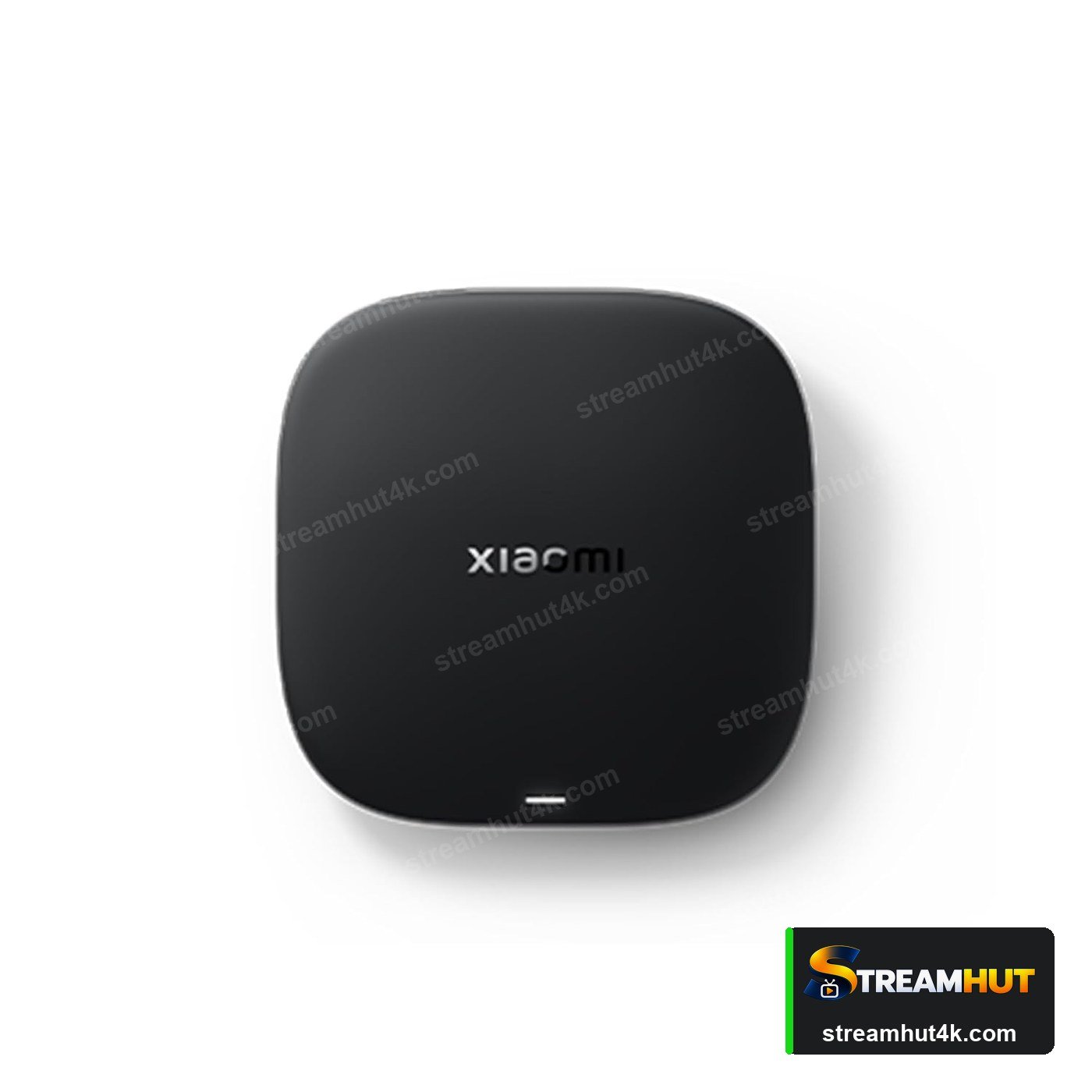
- An Android device — Android TV, Google TV, an Android box or a stick running Android 9 or newer.
- Google Play access or the ability to sideload an APK if the player is not published in your region.
- Your IPTV login details from your provider.
- An IPTV player — TiviMate, IPTV Smarters, XCIPTV and others all support Android.
- A stable connection, ideally wired for a box that stays in one place.
How to Set Up IPTV on Android TV for IPTV
The same five steps apply on every device — only the menus differ.
Open Google Play and install a player
Search for your chosen IPTV player and install it. If it is not listed, download the APK from the developer's site and allow installs from unknown sources.
Choose the login method
Select Xtream Codes API if you have a server URL and credentials, or M3U playlist if you were given a URL only.
Enter your details
Type the server, username and password exactly as issued, then let the player import the channel list and VOD library.
Set the buffer and hardware decoding
In player settings, enable hardware decoding and increase the buffer slightly on weaker networks.
Save favourites and test
Bookmark the channels you use most, then test live and on-demand streams across both Wi-Fi and wired connections.
What to Check Before You Buy
A quick comparison so you buy the right thing the first time.
| Check | What Matters | Why It Matters |
|---|---|---|
| Device Type | Best For | Watch Out For |
| Android TV box | Fixed living-room setups | Cheap boxes have weak Wi-Fi |
| Android stick | Portability | Limited memory and cooling |
| Google TV television | No extra hardware | Fewer player options |
| Projector | Big-screen viewing | Check HDCP and audio pass-through |
Getting a Smooth Stream on IPTV on Android TV
Small settings changes that remove most playback problems.
Prefer Wired
Ethernet removes Wi-Fi congestion entirely during busy evenings — worth it for a living-room device.
Keep Firmware Current
Updates fix playback bugs and improve codec support. Check for them after any picture problem appears.
Close Background Apps
Sticks and boxes have limited memory. Exiting other apps frees bandwidth and RAM for the stream.
Boxes beat sticks for permanent setups
A box sits still, has Ethernet, better cooling and more memory. If your TV is in a fixed place, a box is the more reliable long-term choice.
Other Devices You Can Use
Your subscription works on all of them — switch screens whenever you like.
IPTV on Android TV IPTV — Common Questions
Answers to the questions owners ask most often.
TiviMate is the favourite for its interface and catch-up support; IPTV Smarters is the simplest to start with. Compare options on the IPTV apps page.
Yes. Enable installs from unknown sources, then use a file manager or Downloader app to install the APK. This is normal practice on Android.
Most boxes advertise 4K, but real performance depends on the chipset and decoder. Confirm the channel broadcasts in 4K and read the IPTV 4K guide.
Usually the network, not the box. Test a wired connection first — most buffering complaints disappear with Ethernet. See buffering fixes.
Yes. Any television with an HDMI input works, including older sets that have no smart features at all.
Related IPTV Guides
Set Up IPTV on Android TV
Test it on your own box or television before you subscribe.