
IPTV on Samsung Smart TV: Tizen Setup Guide
Samsung Smart TVs run Tizen, which supports IPTV players directly. No stick, no box — install the app and add your playlist.
IPTV on a Samsung Smart TV uses the Tizen operating system built into the television. Recent models can install IPTV players straight from the TV's app store, which makes for the neatest possible setup.
The main variable is which players Samsung publishes in your region — some require sideloading.
What You Need for IPTV on Samsung Smart TV
Check these before you start so setup is a single pass.
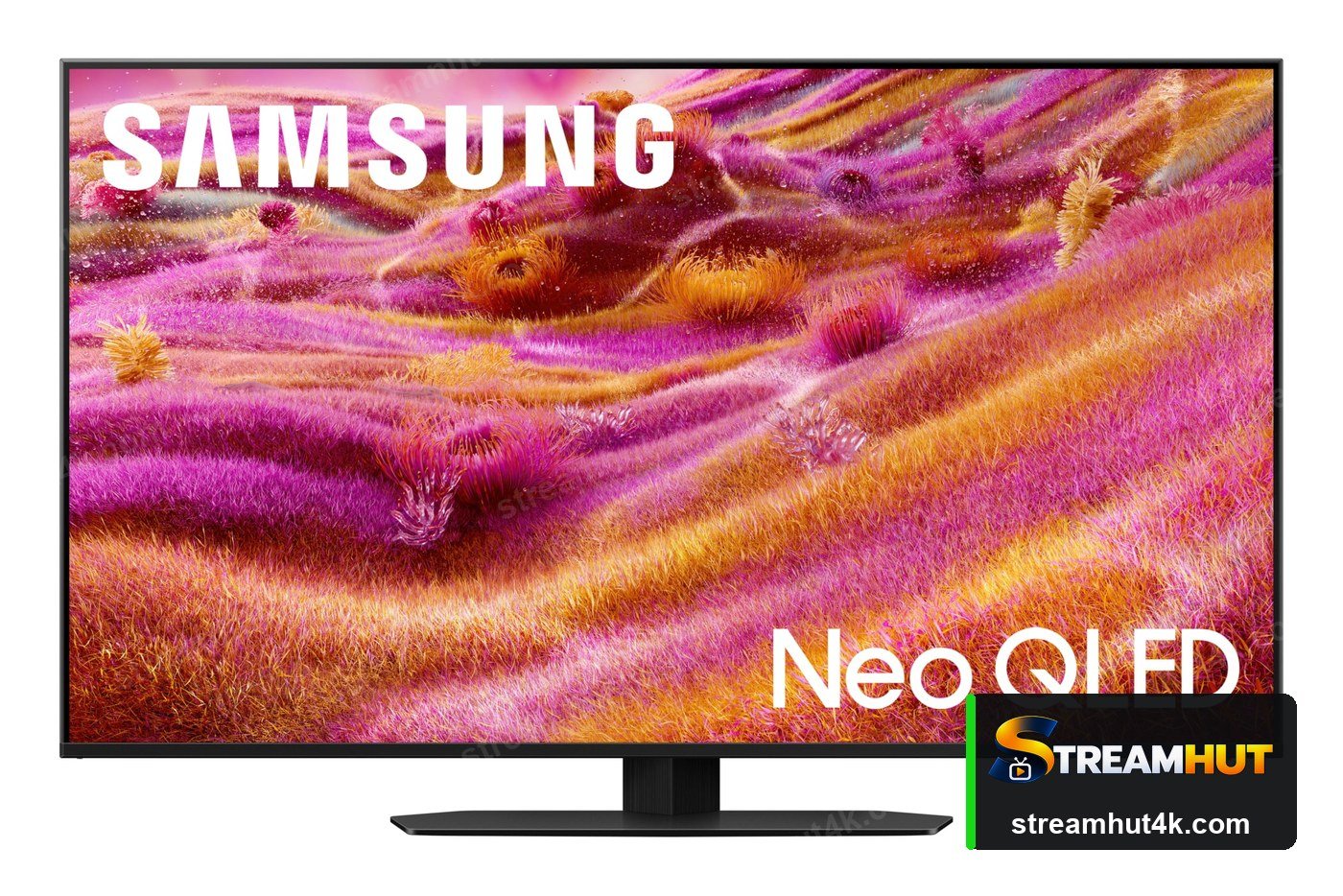
- A Samsung Smart TV running Tizen — models from 2017 onward are generally supported.
- An IPTV player published for Tizen, or a USB stick for sideloading.
- Your IPTV login details from your provider.
- An Ethernet or strong Wi-Fi connection — Samsung TVs have built-in Ethernet, use it.
- Developer mode enabled if you need to sideload an app that is not in the store.
How to Set Up IPTV on Samsung Smart TV for IPTV
The same five steps apply on every device — only the menus differ.
Search the Samsung App Store
Open Apps on the television and search for an IPTV player. Availability varies by region and model year.
Install the player
Download and open it. If nothing suitable is listed, you will need to sideload via developer mode — or add a streaming stick.
Choose the login method
Select Xtream Codes API if you have a server URL and credentials, otherwise paste the M3U playlist URL.
Enter your details
Type the credentials exactly as issued and let the app import your channels and VOD library.
Switch to Ethernet and test
Plug the TV into the router if possible, then test live and on-demand streams before adjusting anything else.
What to Check Before You Buy
A quick comparison so you buy the right thing the first time.
| Check | What Matters | Why It Matters |
|---|---|---|
| Tizen Generation | Typical Model Years | Player Support |
| Tizen 6.5+ | 2021 onward | Good — most players available |
| Tizen 5.5 | 2020 | Fair — some apps removed |
| Tizen 4.0 | 2018–2019 | Limited |
| Tizen 2.x / 3.0 | 2015–2017 | Very limited — use a stick |
Getting a Smooth Stream on IPTV on Samsung Smart TV
Small settings changes that remove most playback problems.
Prefer Wired
Ethernet removes Wi-Fi congestion entirely during busy evenings — worth it for a living-room device.
Keep Firmware Current
Updates fix playback bugs and improve codec support. Check for them after any picture problem appears.
Close Background Apps
Sticks and boxes have limited memory. Exiting other apps frees bandwidth and RAM for the stream.
Sideload, or just add a stick
Enabling developer mode to sideload a Tizen app is possible but fiddly. A Firestick plugged into the same TV is usually quicker and easier to maintain.
Other Devices You Can Use
Your subscription works on all of them — switch screens whenever you like.
IPTV on Samsung Smart TV IPTV — Common Questions
Answers to the questions owners ask most often.
Models from 2017 onward can usually run a player, but the selection shrinks on older Tizen versions. If yours is unsupported, add a streaming stick.
Enable developer mode from the TV's app screen, then install the Tizen package from a PC using the Tizen Studio tool. It is more involved than installing from the store.
Wi-Fi is the usual culprit. Connect the TV to the router with Ethernet — Samsung TVs all include the port. More detail in fixing buffering.
Yes on 4K models, provided the channel broadcasts in 4K and your connection can sustain it. See IPTV 4K.
No — the same account normally installs on several devices, subject to your plan's simultaneous stream limit.
Related IPTV Guides
Set Up IPTV on Your Samsung TV
Test the line-up on your own television before you subscribe.